
SanDisk Solid State Drives (SSDs) in Canada
-
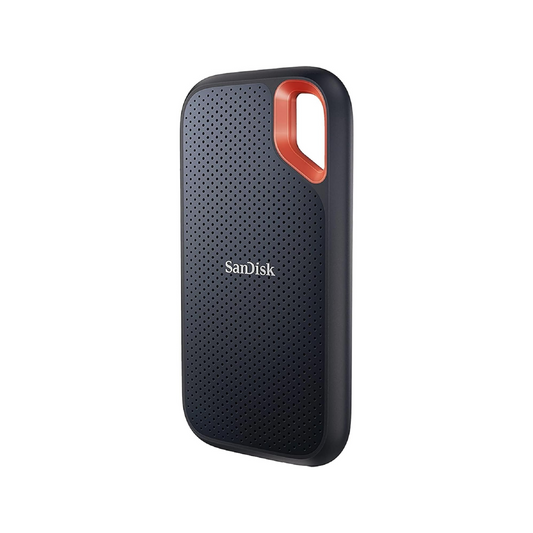
SanDisk Extreme Portable SSD USB-C, Solid State Drive up to 1050MB/s for Fast Storage and Backup
Capacity: 1TB–2TBRegular price From $331.40Sale price From $331.40Unit price perSale -
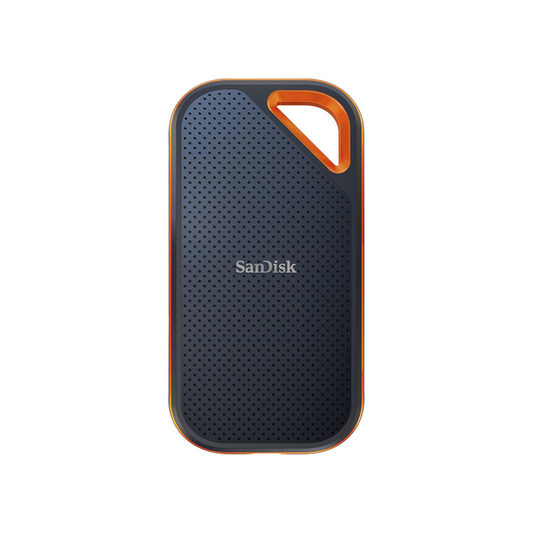
SanDisk Extreme PRO Portable SSD USB-C, Solid State Drive up to 2000MB/s for Fast Storage and Backup
Capacity: 1TB–2TBRegular price From $393.58Sale price From $393.58Unit price perSale -

SanDisk Portable SSD USB-C, External Solid State Drive up to 800MB/s for Fast Storage and Backup
Capacity: 1TB–2TBRegular price From $317.19Sale price From $317.19Unit price perSale

Trusted by Professionals & Businesses Across Canada


Shop by use case
Shop Solid State Drivess by Use Case
Find the right SanDisk SSD for your setup—consider how much storage you need, where you will use it, and which connection type your device supports.

Laptop & Desktop Upgrades
Give a slow laptop or desktop a noticeable everyday performance boost with faster startup times, app loading, and file access.
- Best for: work, school, home computers, and older PCs
- Check compatibility: SATA, M.2, or NVMe support
- Recommended capacity: 1TB for most everyday setups

Photo, Video & Creative Projects
Keep active projects, large media files, and creative libraries within easy reach while reducing transfer and loading time.
- Best for: photography, video editing, and design projects
- Prioritize: higher capacity for large media files
- Recommended capacity: 2TB for 4K video and larger libraries

PC Gaming & Game Libraries
Make room for more games, downloadable content, and software while improving loading performance on compatible systems.
- Best for: gaming PCs and larger game collections
- Recommended capacity: 1TB for core games; 2TB for bigger libraries
- Check compatibility: your system’s supported drive interface

Portable Storage & Backups
Bring important files with you, create reliable backup copies, and transfer content quickly between compatible devices.
- Best for: travel, backups, and file transfers
- Check compatibility: USB-C, USB-A, or other required connections
- Recommended capacity: 1TB+ for photos, videos, and larger backups
Choose a SanDisk SSD by Capacity
1TB
See 1TB SSDs →Learn more
2TB
See 2TB SSDs →Learn more
Learn More About SanDisk SSDs
SanDisk SSDs can make everyday computing feel faster—from startup and app loading to gaming and large file transfers. Choose 1TB for a strong balance of storage and performance, or 2TB when you work with larger media libraries, 4K projects, frequent backups, or a growing game collection. Before purchasing, check whether your device needs an external SSD, a 2.5-inch SATA drive, or an M.2 NVMe drive.
Choosing the Right SanDisk SSD
What is a solid-state drive (SSD)?
An SSD is a storage drive that uses flash memory instead of spinning disks. Because it has no moving parts, an SSD is typically faster, quieter, and more resistant to everyday bumps than a traditional hard drive.
What is the difference between an SSD and an HDD?
SSDs are generally better for faster startup times, app loading, gaming, and file transfers. HDDs are usually better when you need the lowest cost per gigabyte for large archives or backups. Read our full guide: SSD vs HDD explained .
Is a 1TB SSD enough?
For many people, 1TB is a strong balance of capacity and value. It gives you room for a modern operating system, applications, a game library, photos, and regular work or creative projects.
When should I choose a 2TB SSD?
Choose 2TB when you keep larger game libraries, work with high-resolution photos or 4K video, make frequent local backups, or prefer having more storage headroom for future projects.
What is the difference between SATA and NVMe SSDs?
SATA SSDs are commonly used to upgrade older laptops and desktops, while NVMe SSDs are designed for compatible M.2 or PCIe slots and can offer faster performance for gaming, editing, and large-file workflows.
Does M.2 automatically mean NVMe?
No. M.2 describes the physical shape and connection style of the drive, not necessarily its speed. An M.2 drive can use either SATA or NVMe, so always check what your device supports before purchasing.
How do I know whether an SSD is compatible with my computer?
Check your computer model or manufacturer specifications for the available storage connection. Internal upgrades may require a 2.5-inch SATA bay or an M.2 slot, while external SSDs need a compatible USB or USB-C port.
Are SSDs good for gaming and video editing?
Yes. SSDs can reduce game load times, improve file transfers, and make large editing projects more responsive. For heavier workloads, choose enough capacity so you are not constantly moving files off the drive.
Do I need to format a new SSD?
A secondary internal SSD or external SSD may need to be initialized and formatted before use. If you are replacing your main drive, you may instead clone your existing drive or install your operating system fresh.
Why should I upgrade to an SSD?
An SSD can make a computer feel noticeably faster by improving boot times, application loading, gaming, and large file transfers. Learn more in our guide: why SSDs are a game-changer .