What-to-Do-When-Your-Memory-Card-Is-Full Top Select

What to Do When Your Memory Card Is Full?

Need help choosing the right memory card?

Use our quick selector to find the best SanDisk card for your device and usage.


Works for SD cards + microSD cards used in cameras, phones, drones, dash cams, and handheld consoles.

Seeing “Memory card full” (or “SD card full”) usually means your photos and videos have taken up available storage — but it can also happen due to hidden system files, duplicate media, or an incomplete transfer. The good news: you can free space safely without losing important files, as long as you follow the right order.

Before you delete anything:
  • Stop recording (camera/dash cam/drone) to avoid corruption.
  • Back up first if you care about the files.
  • Do not format until you confirm your backup opens correctly.

Fast fixes (highest impact)

  • Sort by size and move/delete the largest videos first (often 70–90% of space).
  • Empty “Recently Deleted/Trash” (phones often keep a second copy until you clear it).
  • Remove duplicates (burst shots, repeated exports, messaging app downloads).
  • Check if the transfer actually completed (partial copies can leave files on the card).

Best options compared

Option Best for Pros Watch-outs
Transfer to computer Most users, cameras, SD/microSD cards Fast, simple, full control Use a reliable card reader/cable; verify files open
Cloud backup Phone users, ongoing backups Safe, accessible anywhere Upload time + storage limits; confirm sync finished
USB-C drive offload Travel, creators, quick freespace No laptop required (device-dependent) Device compatibility varies; keep files organized
Delete unnecessary files Quick cleanup after backup Instant storage recovery Only delete after you confirm backup is complete
Format the card Fresh start after backups Best performance + clean structure Erases everything — last step, not first

1) Transfer to a Computer (Safest First Step)

The safest way to fix a full memory card is to copy everything to a computer first. This gives you a clean backup and makes it easier to organize, delete duplicates, and archive older files.

  1. Connect the card using a reliable card reader (SD) or adapter (microSD).
  2. Copy the entire DCIM folder (and any video folders) to a clearly named folder (example: 2026-02-Backup-Camera).
  3. Verify by opening a few random photos/videos to confirm the copy worked.
  4. Only then delete files from the card (or format if you want a fresh start).
Pro tip: If you’re using a camera, it’s usually best to format the card in the camera after you’ve backed up, rather than deleting hundreds of files one-by-one. Formatting reduces fragmentation and errors.

2) Back Up to Cloud Storage (Great for Phones)

If your microSD card is full on Android (or your phone storage is full), cloud backup is a strong option — especially if you want automatic protection for new photos/videos.

  • Enable photo/video backup and keep your phone on Wi-Fi until syncing completes.
  • Confirm the backup by viewing files from a second device (or web portal) before deleting local copies.
  • Empty trash/recently deleted to actually reclaim space.

3) Delete Unnecessary Files (Do This After Backup)

Once your files are safely backed up, you can delete confidently. Focus on the biggest space-wasters first:

  • Large videos (4K/60fps clips add up fast)
  • Duplicates (burst sequences, repeated exports)
  • App downloads and “received media” folders
What NOT to delete (if you’re unsure): Avoid random “system” folders or hidden files created by devices/apps. When in doubt, back up the entire card first, then format for a clean slate.

4) Use a USB-C Drive for Seamless Storage Expansion

If you’re constantly hitting the storage limit, a USB-C flash drive can be a simple way to offload files without waiting for a full computer workflow — especially while traveling or working on the go.

  • Best for: moving photos/videos from phones/tablets quickly
  • Ideal workflow: copy → verify → then delete from the memory card

Browse USB flash drives

If you want a quick way to free space and move files, explore USB flash drives (including Type-C options).

Shop Flash Drives →


5) Format Your Memory Card for a Fresh Start

Formatting is the cleanest way to restore performance and stability — but it erases everything. Only format after you’ve confirmed your files are safely backed up.

  1. Back up the entire card.
  2. Verify the backup opens correctly.
  3. Format in-device (camera/drone/dash cam) when possible.
Reminder: Formatting is recommended when you’re seeing repeated errors, missing files, or slow performance — but only after backup confirmation.

When It’s Time to Upgrade Capacity

If you’re regularly hitting “card full,” it’s usually cheaper (and less stressful) to move to a higher-capacity card. As a rule of thumb:

  • 64GB–128GB: casual use, occasional video
  • 256GB–512GB: frequent 4K video, travel, larger libraries
  • 1TB+: creators, long shoots, heavy workflows

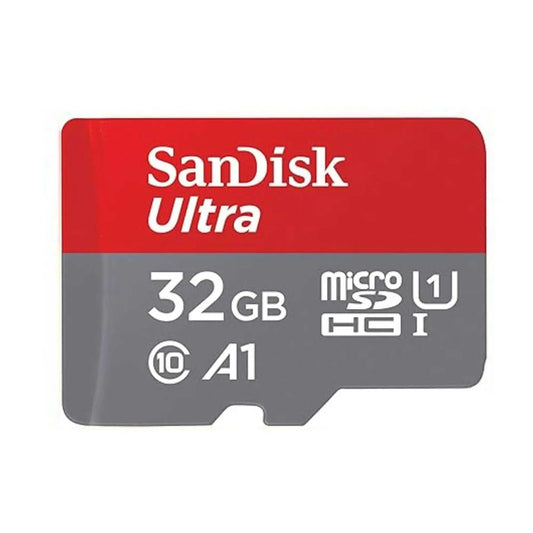
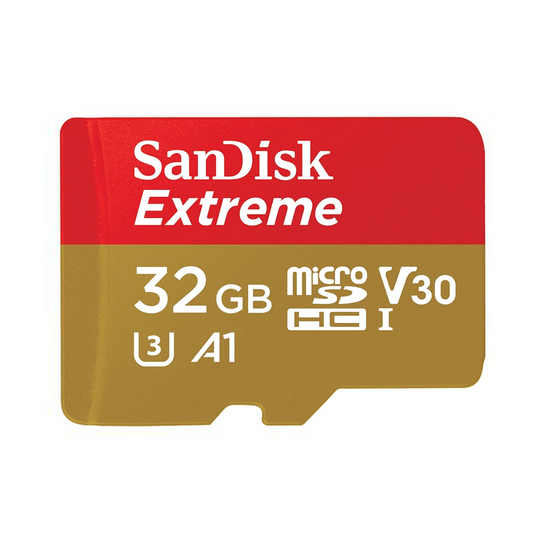
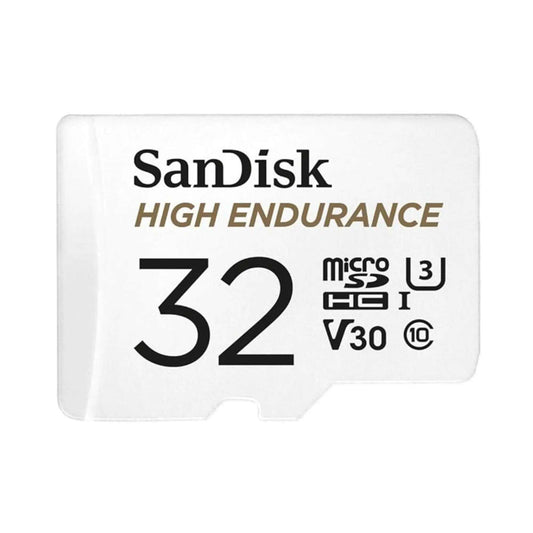
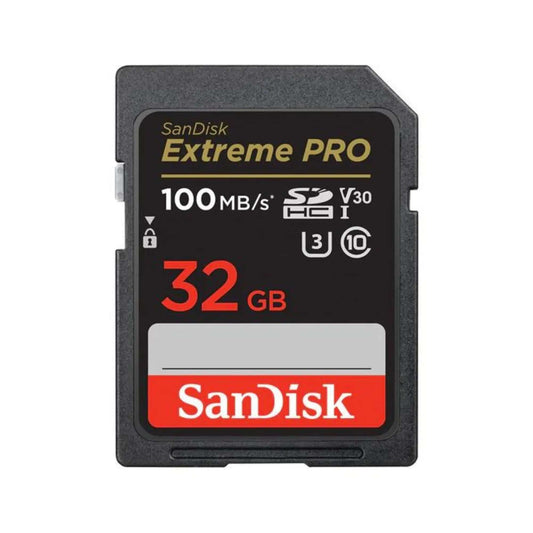
Upgrade your memory card

Explore higher-capacity options for your device:

Shop microSD Cards →  |  Shop SD Cards →


Why Shop at TopSelect.ca?

At TopSelect.ca, we focus on practical storage solutions that help you store more, transfer faster, and avoid common data-loss mistakes. If you’re unsure what to buy, choose based on your device, recording settings (especially 4K), and how often you transfer files.


Final Thoughts

A full memory card doesn’t have to stop your workflow. Back up first, free space safely, and consider upgrading your storage if you’re constantly running out. If you want, share your device (camera model/phone/drone) and the card type (SD or microSD), and you can choose the best next step with confidence.

FAQ: Memory Card Full (SD / microSD)

Why does my SD card say full when I already deleted files?

Common causes include “Recently Deleted/Trash” still holding files, hidden folders, duplicates, or a transfer that didn’t complete. Empty trash, confirm files are actually removed, and consider formatting after backup.

What’s the safest way to free up space on a microSD card?

Copy everything to a computer first, verify your backup opens correctly, then delete or format. This prevents accidental loss and reduces the chance of corruption.

Should I delete files or format the memory card?

If you want a clean, stable card (especially for cameras/dash cams), formatting after backup is usually best. If you only need quick space and the card is healthy, deleting a few large videos may be enough.

Can I use the same memory card across different devices?

You can, but devices may format differently. If you move a card between camera/phone/drone often, back up regularly and format in the device you’ll primarily use to reduce errors.

How much storage do I need for 4K video?

It depends on bitrate, but 4K files get large fast. If you record 4K regularly, consider 256GB–512GB or higher, and ensure the card meets the speed requirements of your device.

Back to top ↑

Back to blog

Leave a comment

Please note, comments need to be approved before they are published.